

Last week I wrote about why hiding a file well is a genuinely hard engineering problem — this week is the other half: actually doing it. No theory, just the steps. If you’ve got a file you want to hide and a photo or video to hide it in, this takes about two minutes.
What you’ll need
- A secret — the file to hide: a document, photo, video, archive, or anything else
- A display photo or video — an ordinary-looking file that the hidden secret will travel inside
- A password
- vaultify.snapwonders.com/upload/hide — no account required
Step 1 — Upload the file you want to hide
Start with the secret, not the display file. Whatever you upload here — a PDF, a photo, a video, a zipped folder — gets encrypted immediately, before anything else happens to it. You can add more than one secret if you want to hide several things at once; Vaultify decides whether to bundle them into a single display file or spread them across a few, based on the packing option you pick later.
Step 2 — Upload a display photo or video
Next, choose the photo or video that will actually be seen — your display file. It should look like a completely normal photo, because to every casual look, it will be one. A display photo with some genuine visual complexity (a real scene, not a flat colour or a plain graphic) gives Vaultify more room to work with — last week’s article covers why some regions of a photo can absorb more than others — but you don’t need to think hard about this — most everyday photos and video clips work fine.
Step 3 — Set a password
This is the part that actually protects the file. Your password encrypts the secret before it ever gets hidden — so even in the rare case someone did manage to pull data out of the display file without knowing it was there, what they’d get is ciphertext, not your file. Pick a real password, not something guessable; Vaultify shows you a strength indicator as you type.
What actually protects the file
The password isn’t a formality — this is what it actually does, and it’s the same design snapWONDERS documents publicly on its About page, not something new for this walkthrough:
- Every hide job requires a password. There’s no option to embed content without one, and it never leaves your device in a usable form.
- Your password is run through Argon2id — winner of the international Password Hashing Competition — before it becomes an encryption key. Argon2id is deliberately slow and memory-hard, which makes brute-forcing it with GPUs impractical even against someone who has the file in hand.
- The derived key encrypts the payload with AES-256-GCM — the cipher the NSA specifies for TOP SECRET material. GCM also authenticates: a wrong password fails cleanly rather than silently returning corrupted data.
- The key is bound to the specific display file. A visually identical copy of the same photo from somewhere else will not derive the same key — you need the exact original result file back to reveal anything.
- Pro accounts can add Vault Lock, which requires both your password and a server-held token to derive the final key. Neither one alone is enough, and revoking a vault profile makes that content permanently unrecoverable — even if the password leaks later.
On the other side of that: nothing about your password (or anything derived from it) is stored, uploaded files aren’t retained after the session ends, and there’s no master key or back door — nobody on the snapWONDERS side can decrypt your content for you.
Step 4 — Hide and download
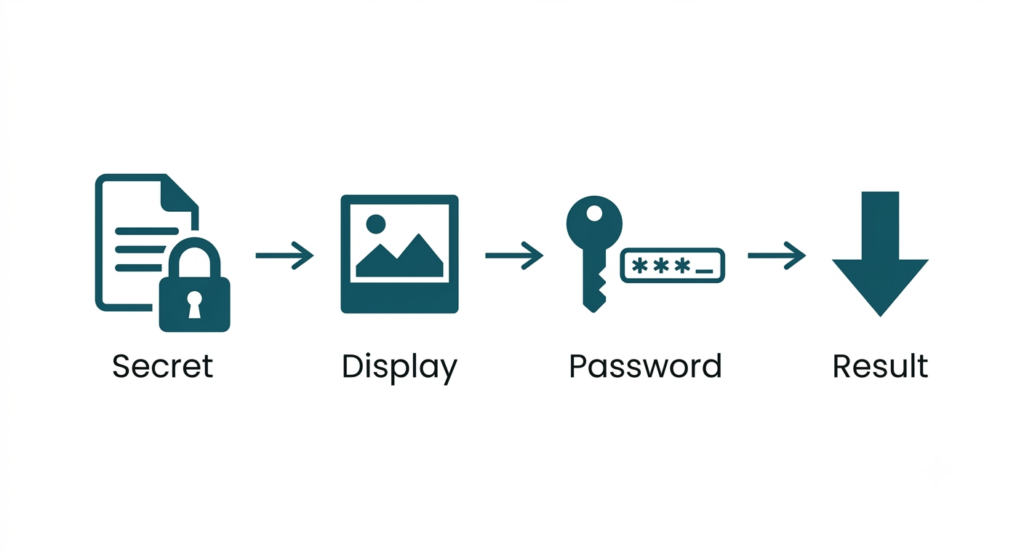
Confirm and Vaultify runs the job — encrypting, then embedding, then handing back your result. Download it. That result file is now what you share, store, or send. It opens and displays exactly like the original display file; nothing about viewing it looks any different.
Verifying it worked
Open the downloaded result the way you normally would — in a photo viewer, a video player, whatever’s standard. It should look identical to the original display file: same colours, same detail, nothing off. That’s the point — a hidden file shouldn’t announce itself to a normal viewer. It’s not a guarantee against every possible forensic technique — statistical steganalysis is a real, active field, and I’ve written about how it works from the detection side — but for anyone just looking at the photo, there’s nothing to see.
How to reveal it later
When you’re ready to get the file back out — or you’re the person receiving it — go to vaultify.snapwonders.com/upload/reveal, upload the result file, and enter the password (plus your second factor, if Vault Lock was enabled). Vaultify decrypts and hands back the original secret, ready to download.
Prefer the API or SDK?
Everything above is the web UI — the fastest path for a one-off file. If you want this in an automated workflow, snapWONDERS exposes the same hide and reveal operations over a REST API and official Python, JS, PHP, and Go SDKs. The more interesting piece for right now: it also includes an MCP server, which means AI agents — Claude and other MCP-compatible assistants — can call hide and reveal directly as tools, rather than a human working through the web form. Full docs: snapwonders.com/developers.
FAQ
Is this actually free?
snapWONDERS runs a free tier and a Pro tier. Everything in this walkthrough — hiding and revealing files — is on the free tier today, no account needed. Pro exists mainly to raise the limits below; its launch has been delayed during snapWONDERS’ ongoing modernisation (the same project that split hiding/concealing out into Vaultify and unified the accounts). Track what’s changing, and when Pro lands, at vaultify.snapwonders.com/whats-changing.
Is there a file size limit?
Currently, yes — up to 500MB for any single file, and up to 30 files concealed in one job on the free tier. Both numbers can change on our side, and Pro (once it launches) raises them, so treat this as today’s limit rather than a permanent one.
What can I hide, and what can I use as a display file?
Almost anything can be a secret — documents, photos, videos, archives, whatever you need to hide. Display files are photos or videos; Vaultify converts common formats automatically so you don’t need to think about compatibility going in.
What happens if my secret file is too big for the display file I chose?
Vaultify tells you immediately rather than letting the job fail partway through — the fix is either a larger display file or a smaller secret.
Can I hide more than one file at once?
Yes. If you’re hiding several files, or anything large, a video display file is usually the better choice — it simply has far more data to work with than a single photo, so it can absorb more without anything looking different. Vaultify will bundle your secrets into one display file or spread them across several, depending on the packing option you select.
Does this work on my phone?
Yes — it’s a normal browser upload, so it works the same way on mobile as it does on desktop. No app to install.
Is it really undetectable?
No tool should claim that, and Vaultify doesn’t. It’s built to resist casual and automated detection — last week’s article covers what that actually means, and the one before it covers how forensic detection works from the other side.
→ Hide a file inside a photo or video with Vaultify
Two minutes, and the result travels inside something that looks completely ordinary. The harder engineering problem — making sure it stays that way — is what last week’s article was about.
You can also follow it as a step-by-step guide: How to hide a file or message inside a photo (and get it back).
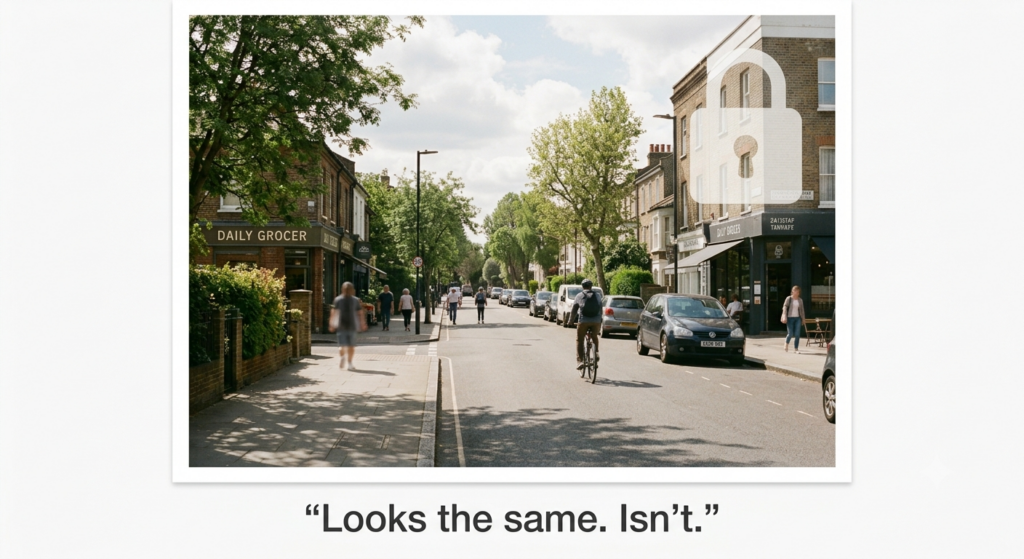
Here is the result on one of our own photos, before and after: a note hidden in a photo.
Kenneth Springer is the founder of snapWONDERS and built Vaultify, its AI steganography platform. This walkthrough is the practical companion to last week’s article on how the hiding actually works and the detection side published the week before that. snapWONDERS Vaultify — no account required.