

Someone has just sent you a photo of a beautiful beach. It looks innocent. But are you certain that’s all they sent you?
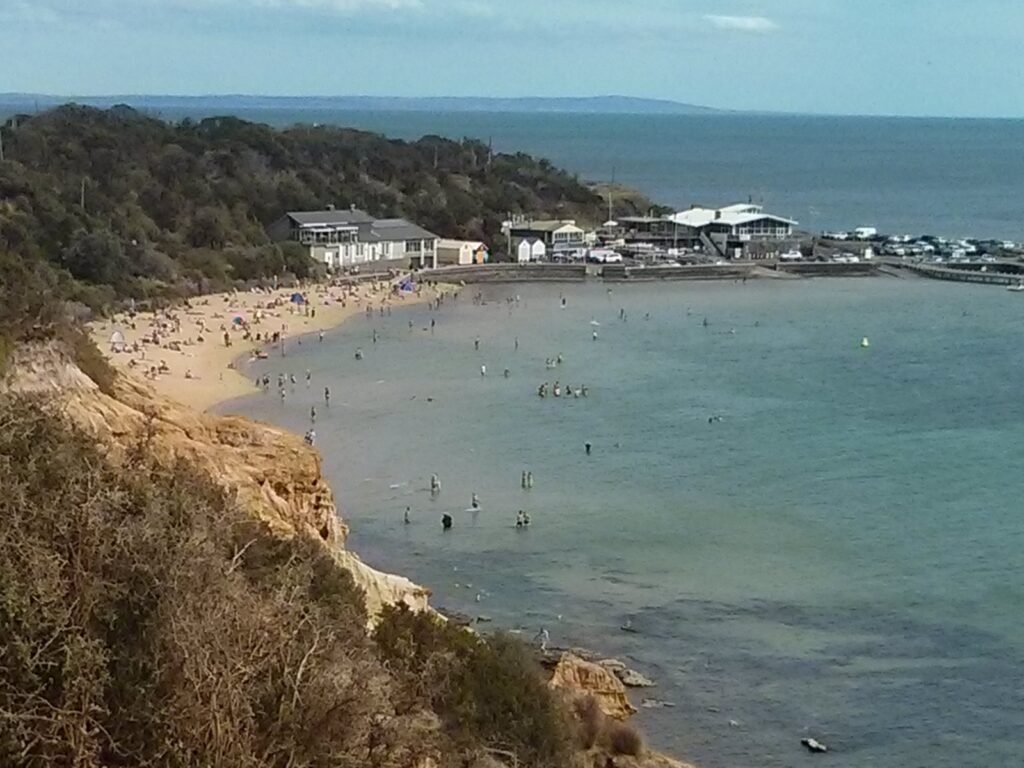
What if it also carried a hidden archive: malware waiting to be unpacked onto your device, or a message meant for someone else?
It sounds far-fetched, maybe even like magic, but I assure you it isn’t. It’s easy to do. The photo is more than a photo. It doubles as an archive file, and that’s what it means when a photo is a polyglot.
Make one yourself
It takes about a minute. Take any photo and any small ZIP file. On Windows, open a Command Prompt (not PowerShell) in the folder and run:
copy /b photo.jpg + archive.zip combined.jpgOn Linux or macOS:
cat photo.jpg archive.zip > combined.jpgNow double-click combined.jpg. It opens as a normal photo. Nothing looks different. Then, in the same Command Prompt, run:
tar -tf combined.jpgThe file from your archive is listed. One file, two formats.
I used a photo from an old Nexus 4 of mine, 822,437 bytes, and a ZIP holding one small text file, 148 bytes. The combined file came out at exactly 822,585 bytes. Nothing was converted or hidden in a clever way. The ZIP was just glued onto the end.
Windows is fine with it too. Rename combined.jpg to combined.zip, double-click it, and Explorer opens it like any other ZIP, with my text file sitting inside. Rename it back and it’s a photo again.
The reason it’s so easy is how simple the JPEG format is about where it stops.
Where a JPEG actually ends
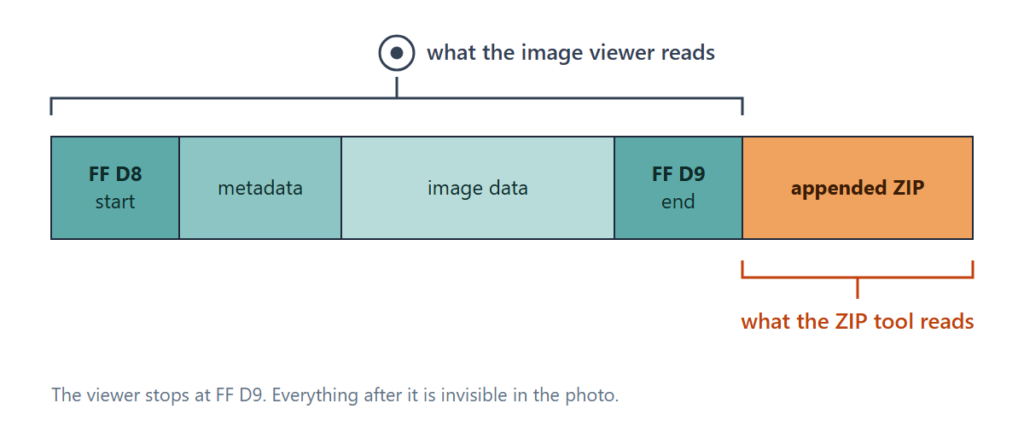
A JPEG file starts with two bytes, FF D8, the start-of-image marker. It finishes with two bytes, FF D9, the end-of-image marker. Both come from the original JPEG standard (ITU-T T.81), and every decoder knows them. In between are the metadata segments, the quantisation and Huffman tables, and then the compressed image data. I went through that layout in more detail in my guide to JPEG forensic analysis.
When an image viewer reaches FF D9 it has everything it needs to draw the picture. So it stops reading. Whatever comes after the end marker is ignored. It isn’t an error, and no viewer I know of warns you about it.
That is the whole trick. The format says where the image ends, and nothing says the file has to end there too.
Why the ZIP side works too
The other half is how ZIP files are read. A ZIP archive keeps its table of contents, the central directory, at the very end of the file. The published ZIP specification (PKWARE’s APPNOTE) describes this. An unzip tool starts at the end, finds the directory, and works from there.
So a JPEG reader reads from the front and stops at FF D9. A ZIP reader reads from the back. Both are happy with the same file. That’s also why self-extracting archives have worked for decades: a program at the front, an archive on the back.
ZIP is the classic pairing, but it isn’t the only one. The same idea works with RAR, 7-Zip, gzip and PDF.
Why anyone should care
A picture on its own can’t run anything. Your photo viewer will never run the ZIP hanging off the end of a JPEG. So why does this matter?
Getting past upload filters. A lot of upload forms decide what a file is by its name or by its first few bytes. A polyglot has a genuine .jpg name and a genuine JPEG header, so it passes. If the site stores the file as-is rather than re-encoding it, the archive rides along and anyone who knows it’s there can download it again.
Delivering a payload in two parts. The image comes in looking harmless, and a separate script or program that is already on the machine reads the bytes past the end marker.
Moving data out. It works in the other direction too. Files can leave a network looking like holiday snaps.
“This image is bigger than it should be.” Sometimes the only clue is the size. A small, low-resolution photo that weighs many megabytes deserves a second look.
What the report tells you
When you run a photo through snapWONDERS, the Security section of the report has three rows about this.
1. Trailing data appended to photo?
What it checks: where the image really ends, by following the JPEG’s own structure rather than just looking for the last FF D9, and whether any bytes follow it. If they do, it tries to identify them.
What my combined.jpg got: “Appended ZIP archive. A ZIP archive appended after the photo. Appending a file to an image is a known way to carry a hidden payload.” The original photo had nothing after the end.
2. Polyglot / hidden archive?
What it checks: whether the extra bytes start like a well-known archive or document format, such as ZIP, RAR, 7-Zip or PDF.
What my combined.jpg got: yes, ZIP, starting at byte 822,437, which is exactly where the photo ends.

Keep in mind: the list of formats it knows is short, so a “no” here doesn’t mean the extra bytes are harmless. The trailing data row is the one to trust first.
3. Embedded binary strings?
What it checks: the metadata in front of the image data, for web addresses, email addresses, file paths and IP addresses.
Keep in mind: treat this one as a clue, not a finding. Editing programs write their own web addresses into metadata all the time.
Innocent reasons for extra bytes
Extra bytes after the end marker don’t automatically mean someone is up to something. Some phones put them there on purpose.
I checked some of my own photos, taken on the different cameras and mobiles I have. As examples, I found:
- Samsung Galaxy A56: every photo I checked had a small block after the end of the image, 182 or 221 bytes. It’s Samsung’s own record block. The report recognises it and shows what’s inside: the time the photo was taken in UTC (which gives away your time zone), the mobile network’s country code, the colour profile and camera settings.
- iPhone 14 Pro Max: every photo I checked had a second, smaller image after the main one, which Apple uses for HDR display, plus some padding. The report recognises that too.
- Some of my other phones and cameras: nothing after the end at all.
- Google’s published Motion Photo format also stores a short video clip after the still image.
You get the general idea: different manufacturers may or may not add trailing data to their photos. We detect the cases we expect and know about.
Then I tried the trick on the Samsung photo. Glue the same ZIP onto it and the report no longer accepts what’s after the image as Samsung’s block. The 330 bytes there are reported as data it can’t explain, and the polyglot row still names the ZIP. The innocent explanation only holds while the extra bytes look exactly like what the phone writes.
Before and after: a Samsung photo with a ZIP added
There’s a before-and-after of this on snapWONDERS, 161 bytes hiding behind a photo, where a Galaxy A56 photo’s Security grade goes from A to D once a ZIP is added. Here are the report rows from it.
Before: the photo straight off the phone. Everything after the image is recognised as Samsung’s own block.

After: the same photo with a 161-byte ZIP added. Now some of the data can’t be explained.

So the report can say “there are bytes after the end marker” with complete confidence. Whether that’s a phone doing its normal thing or somebody hiding an archive comes down to context. Where did the file come from? What phone does the metadata say took it? Does the extra data match what that phone writes?
If you just want the extra data gone, re-saving the photo in an image editor normally rebuilds the file from the pixels and drops everything after the end marker. Do check the result though, rather than assuming.
Try it on your own files
The demo at the top is the best way to see this for yourself. Make a combined.jpg, run it through snapWONDERS, and look at the Security section. Then run the original photo through and compare. After that try a photo straight off your own phone. You might be surprised what’s sitting after the end marker. If you want the wider picture, including messages hidden inside the pixels themselves, there’s a step-by-step guide: how to find a hidden message or file in a photo.
Pretty excited to keep going with this series. More soon, stay tuned!
Kenneth Springer is the founder of snapWONDERS, a digital forensic analysis platform for images and video, built and run in Victoria, Australia. snapWONDERS forensic analysis needs no account.